

Xpand Portal version 4.5.0.0. introduces practical improvements in localization, data input, and cleaner workspace
Xpand Portal continues to grow with each release, bringing meaningful improvements that help teams work smarter — and version 4.5 is no exception.
Why you'll love 4.5.0.0?
- Productivity enhancements. Localization workflows are now faster and more consistent, reducing manual effort so your team can focus on what matters.
- Data input and presentation enhancements. Cleaner editors and a clutter-free View mode make entering and reviewing data quicker and more comfortable.
- UI layout and navigation optimization. Redesigned screen layouts and smoother navigation help you get more done with fewer clicks.
Let's take a closer look at everything new in this release.
Xpand Portal's latest release, version 4.5.0.0, introduces translation management tool.
Managing multilingual portal content is now faster and more consistent with the new Translation management tool.
By default, when a new language is added in the backoffice, a site copy is created with shared nodes and shared settings. However, configuration of non-shared content and translation are still required, which can be time-consuming and error-prone.
The Translation management tool streamlines this workflow by introducing the following capabilities:
- Copy site configuration between languages
Copy the full site configuration from one language to another, overwriting the target configuration, including setting values. This allows you to quickly align languages and use the copied setup as a consistent basis for translation. - Export front-end localization to CSV and import translated values back into the portal
Export all front-end-related values from the Content area and dictionary items into a CSV file, translate or fill them in externally, and import them back into the portal. This provides an alternative to translating directly in the backoffice UI, enables efficient bulk translation in a single place, and simplifies collaboration with translators.
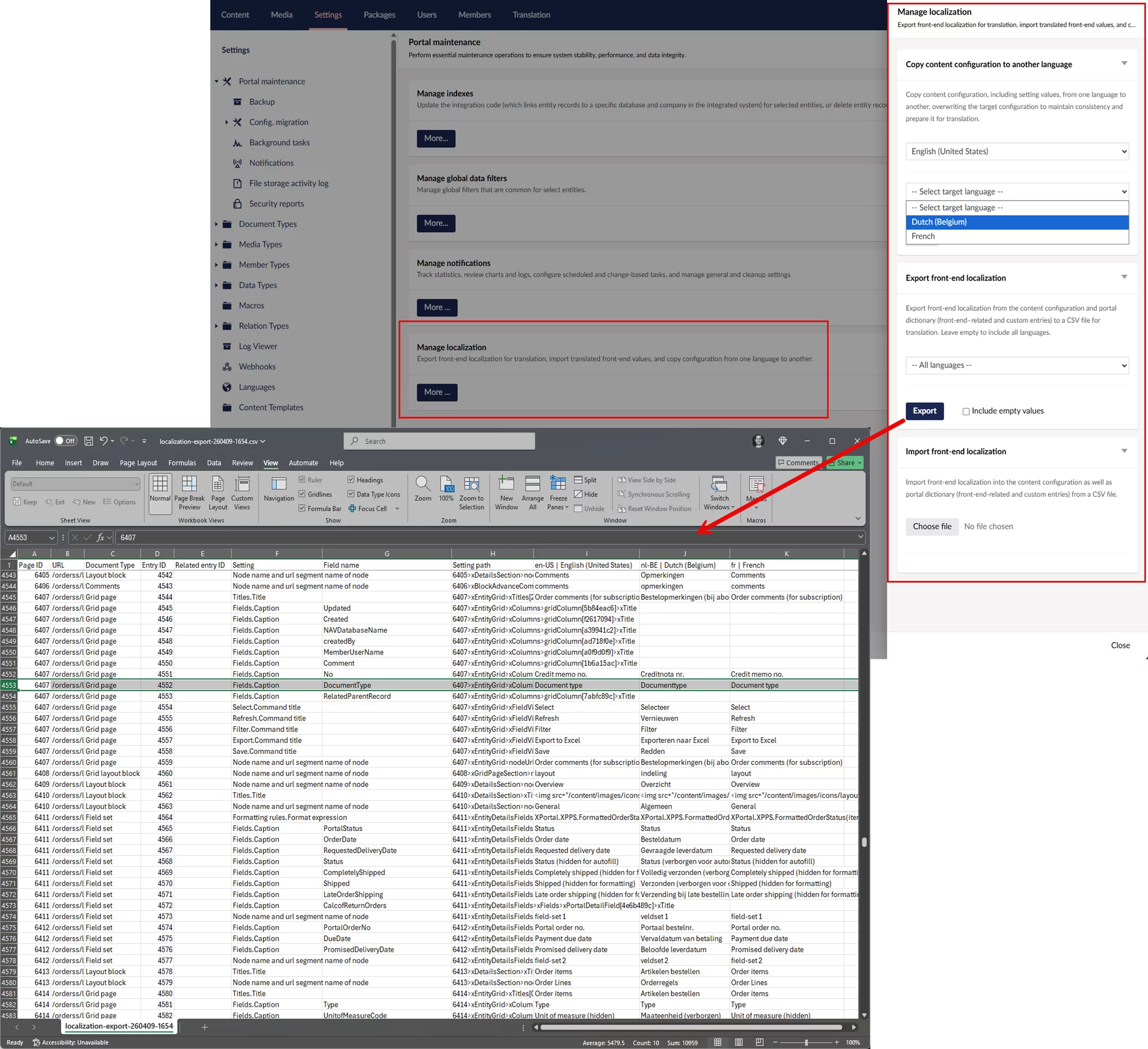
These improvements reduce manual effort, ensure consistency across languages, and accelerate the overall localization process.
Xpand Portal's latest release, version 4.5.0.0, introduces view mode for detail pages.
You can now switch between view and edit modes on detail pages, giving you more control over how data is displayed and edited.
Previously, detail pages were always editable, which made it harder to present a clean, read-only view of the data. Even in scenarios where users only needed to review information, all fields and interactive elements remained visible, resulting in a more cluttered interface.
With the introduction of View mode, you can present data in a simplified, read-only layout that reduces visual noise and improves clarity. By hiding editing controls and optionally actions, View mode provides a cleaner and more focused experience for reviewing information, while still allowing users to switch to edit mode when needed.
With this update, detail pages include a new Toggle view mode action that lets you quickly switch between view and edit modes.
In addition to standard action settings, you can:
- Set the default mode
Choose whether a detail page opens in view or edit mode by default. - Apply mode to the entire page
Configure the action so that the selected mode applies to the entire page, including embedded page parts. In this case, the mode controls not only field editability but also the editability of other elements, such as comments, embedded grid, attachments, etc.
In addition, all detail page actions now include an optional setting to hide the action in View mode.
Edit mode example: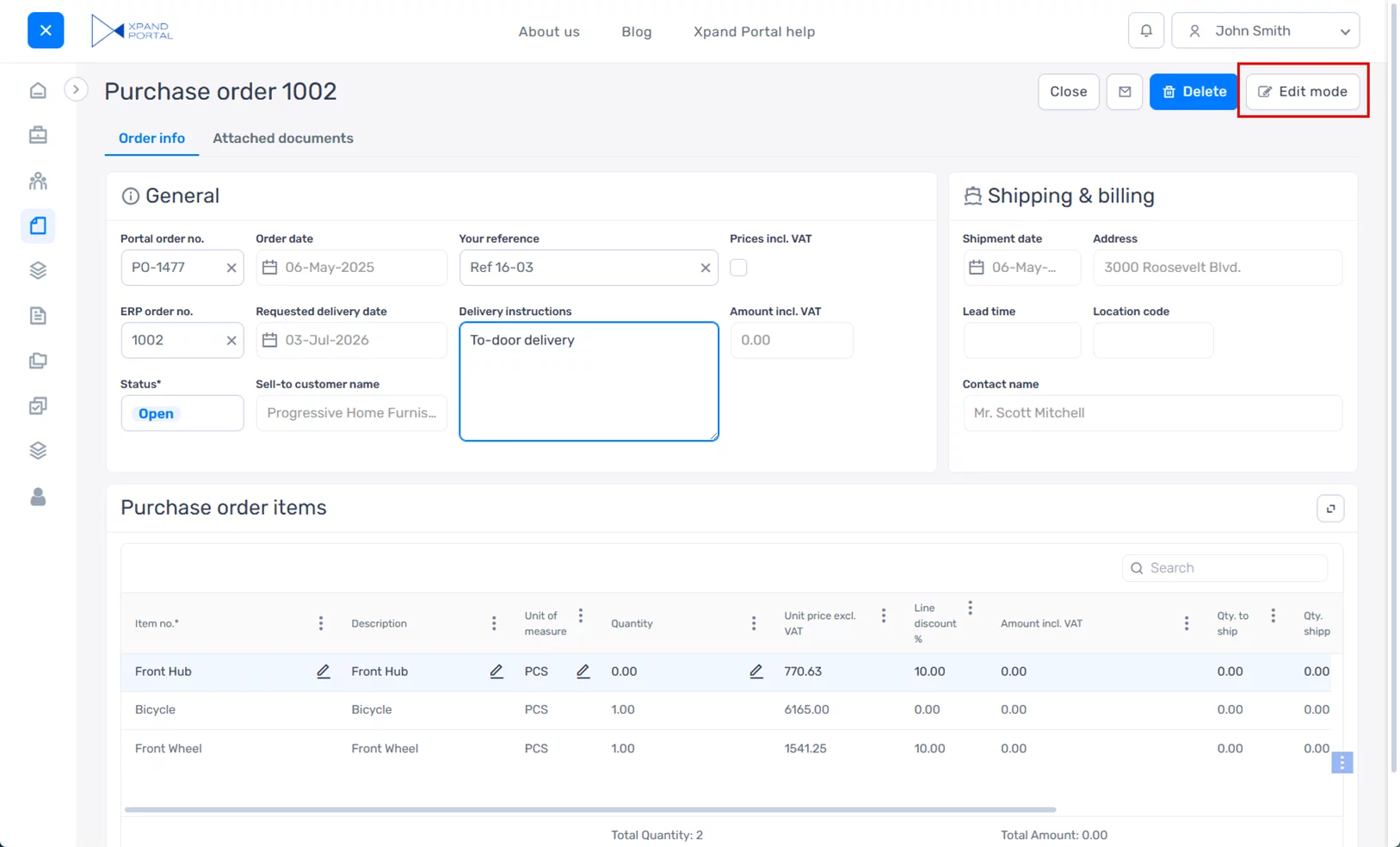
View mode example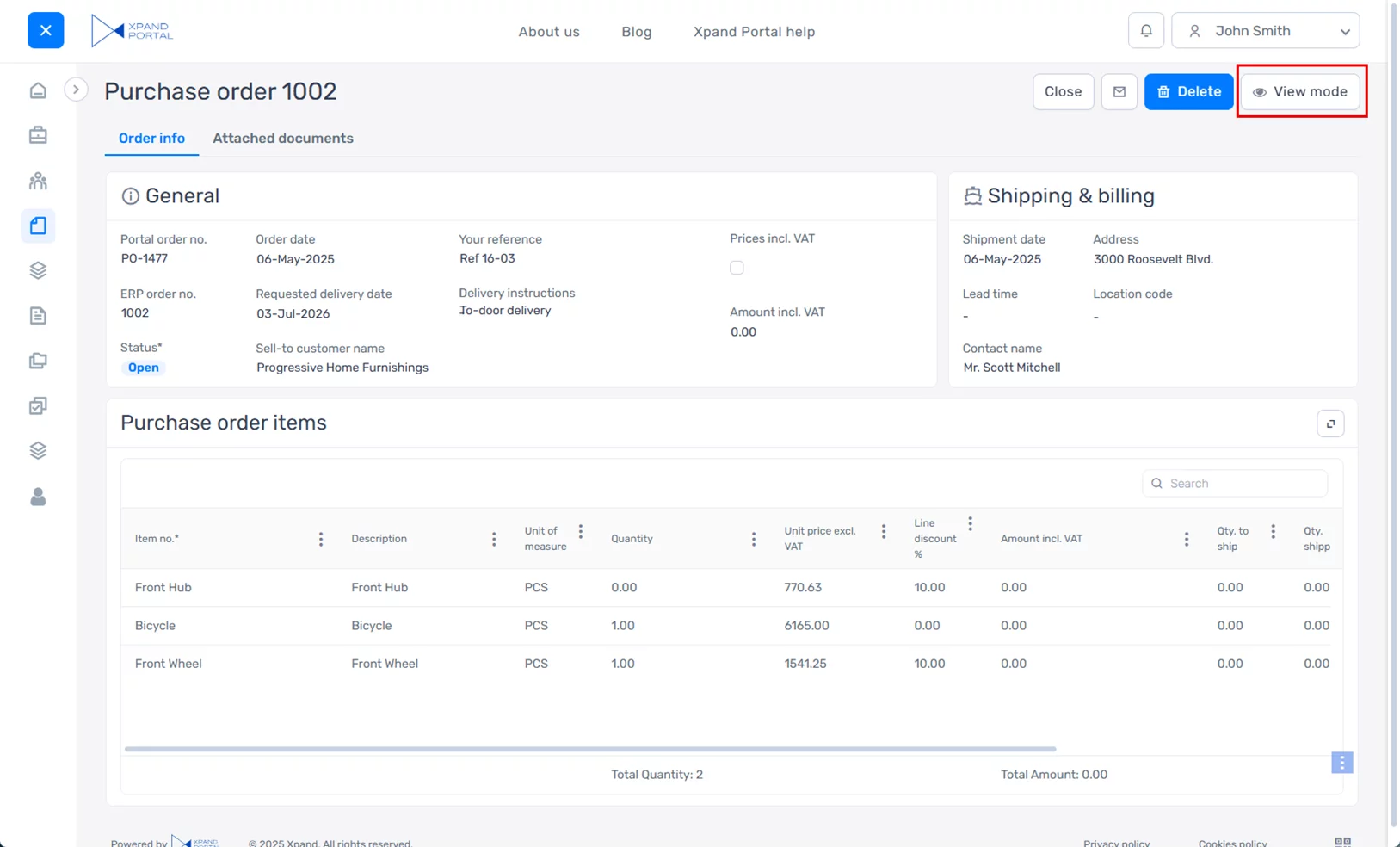
A similar capability for switching between modes was previously available on grid pages and is now extended to detail pages, providing a more consistent and flexible user experience across the portal.
Xpand Portal's latest release, version 4.5.0.0, introduces phone number editor data type.
A new Phone number editor data type is available for fields in extended field sets, providing a dedicated input for phone numbers with country dialing codes.
This data type presents the field in a phone number–specific format, including country code selection (with flags) and structured input, making it clearer and more intuitive for users to enter phone numbers.
With this data type, you can:
- Control available country codes
Define which country dialing codes are available for selection. - Set a default country code
Preselect a country dialing code for the field. When specified, it overrides automatic country detection. - Enable automatic country detection
Automatically detect the user’s location based on IP and preselect the corresponding country dialing code. - Prioritize frequently used countries
Display selected country codes at the top of the list for quicker access. - Exclude specific countries
Prevent certain country dialing codes from being selected.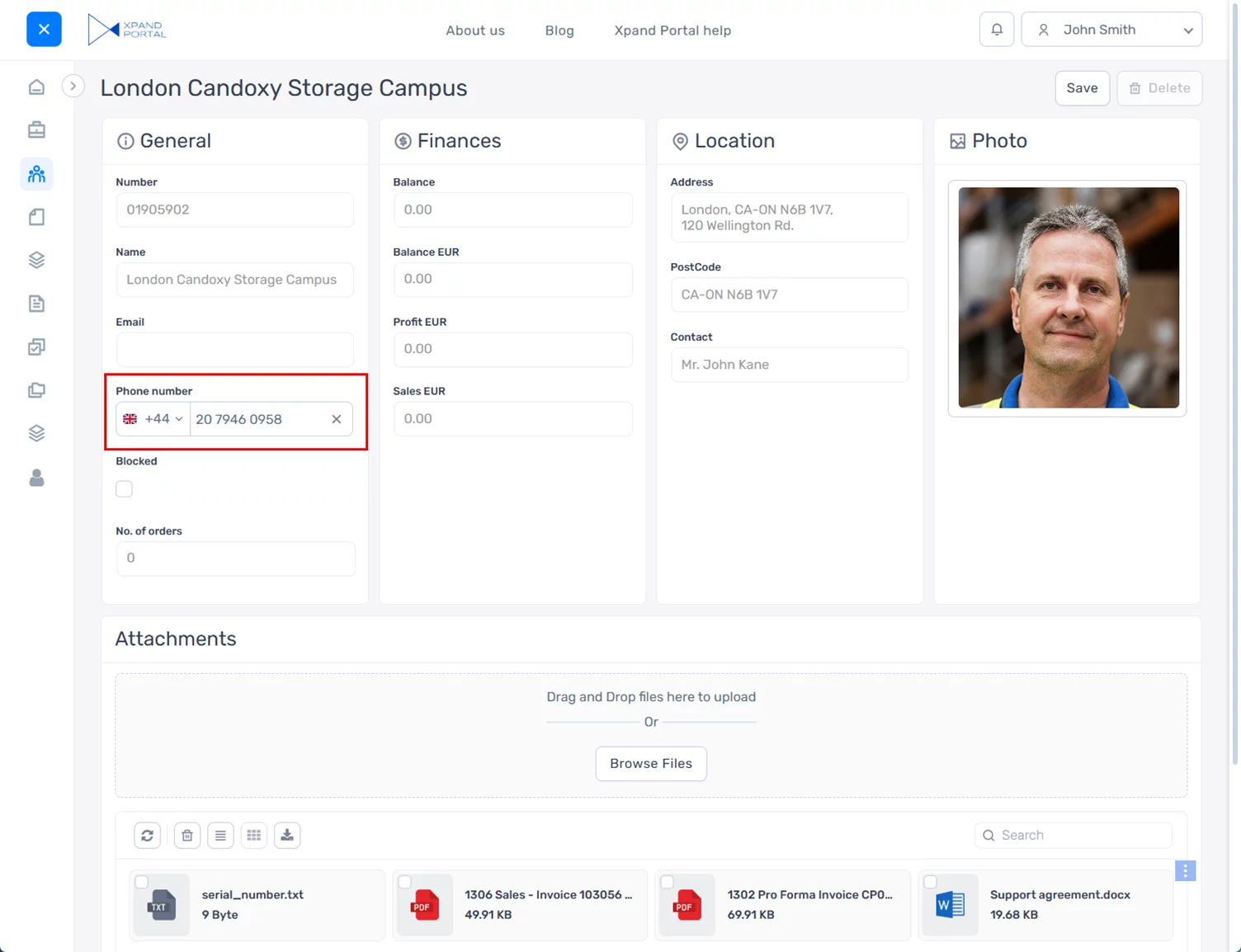
This data type improves clarity and usability when entering phone numbers and helps ensure consistent formatting.
Xpand Portal's latest release, version 4.5.0.0, introduces new design for numeric editor.
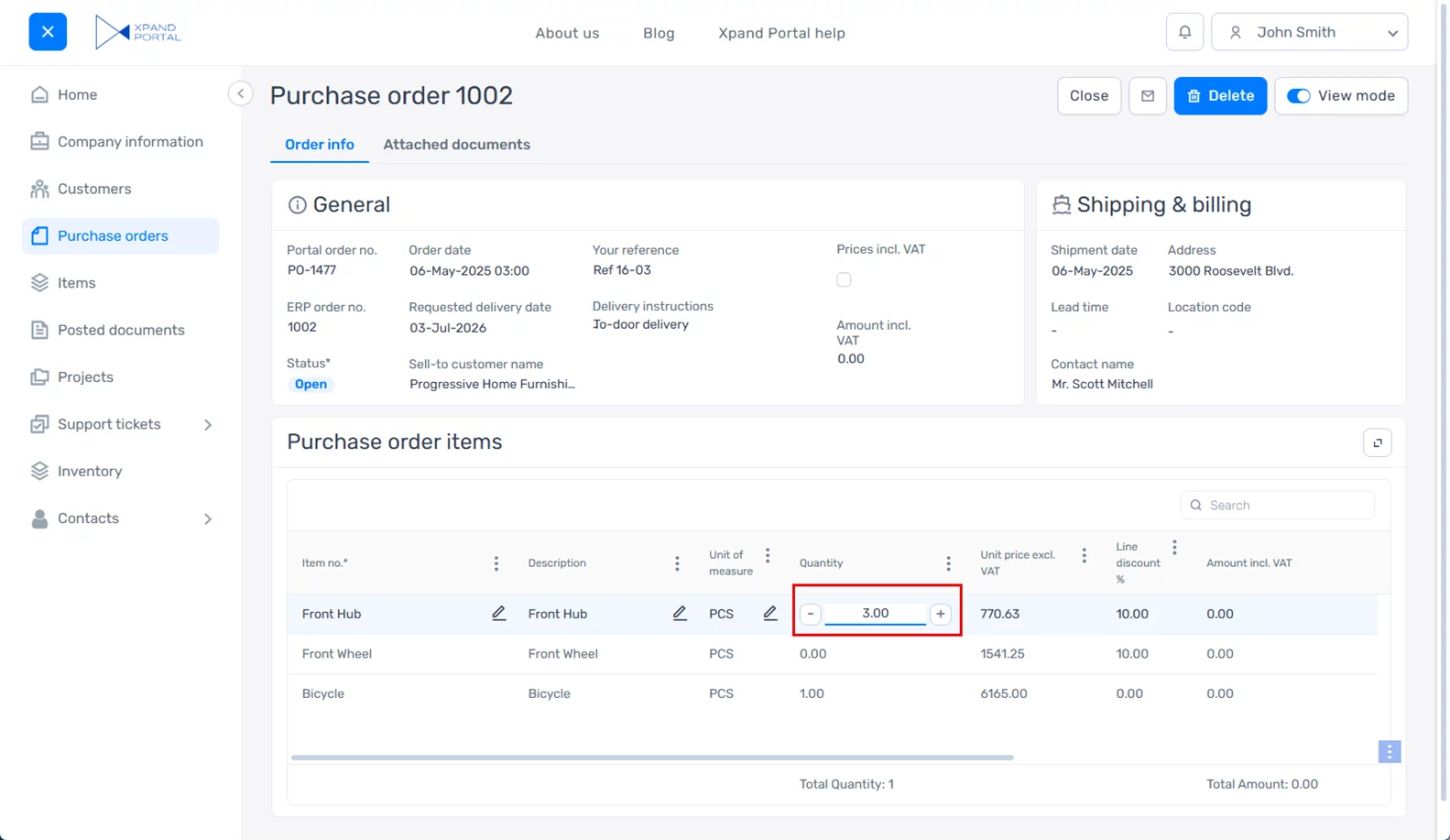
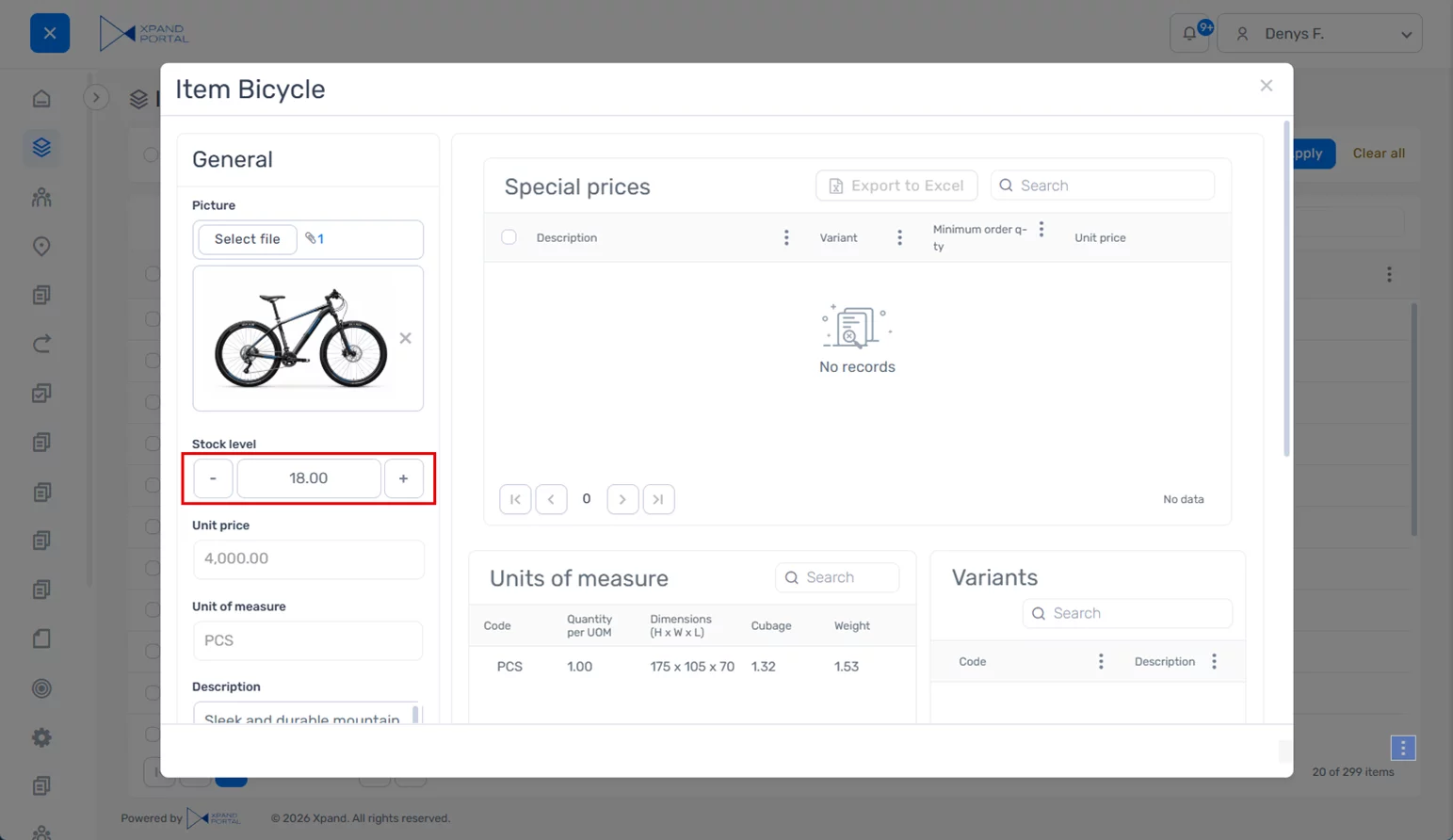
The numeric input control has been redesigned to improve usability and make value adjustment easier.
The updated design features larger, more accessible increment and decrement controls within the field, allowing users to adjust values more comfortably and with greater precision, especially on mobile devices.
The new design is applied consistently across grid and detail pages, providing a more uniform and user-friendly data entry experience throughout the portal.
Xpand Portal's latest release, version 4.5.0.0, introduces compact design for promoted filters when using the wide (horizontal) layout.
A new Wide filter-set container style is available for promoted filters when using the wide (horizontal) layout, allowing you to save space while keeping key filters easily accessible.
This style reduces padding and adjusts visual spacing to create a more compact filter pane at the top of the page. To achieve the intended layout, configure the filters accordingly (for example, avoid adding optional elements such as summary items within promoted filter summary, titles, or icons). When set up properly, it helps preserve more space for the grid while still providing quick access to essential filtering options.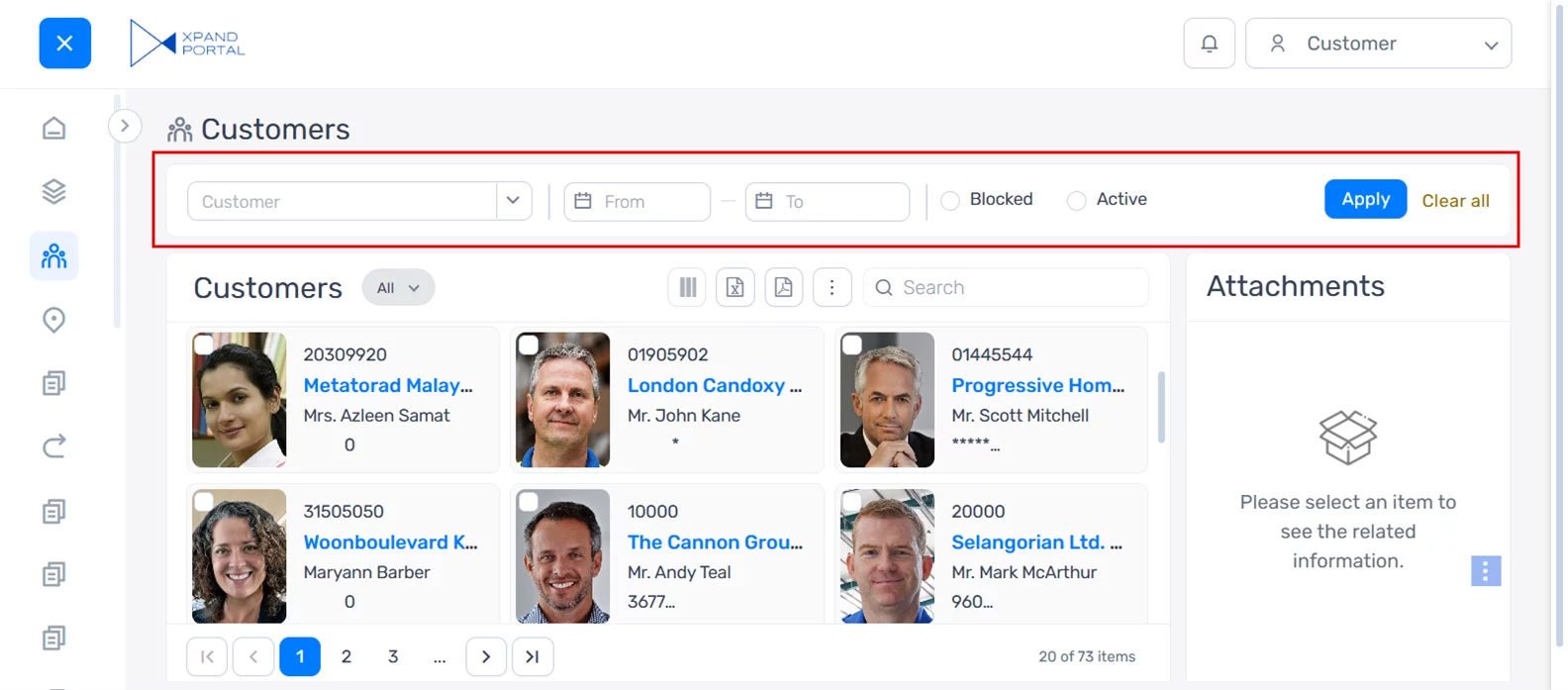
This layout is best suited for scenarios with a limited number of key filters.
The existing (non-compact) layout remains available and can still be used where more space or additional elements are required.
Xpand Portal's latest release, version 4.5.0.0, introduces right-side view style for popup windows.
An enhanced display option is now available for pop-up windows, extending the existing Pages in pop-up windows functionality.
A new Right-side view style can be configured within popup window settings in places where the Open link in setting is available (for example, in certain actions).
When applied, the popup window snaps to the right side of the page or to the top-right corner (depending on the popup window height). If the height is not specified, the popup appears as a panel that occupies the full height of the page, providing more usable space while keeping the context of the underlying page visible.
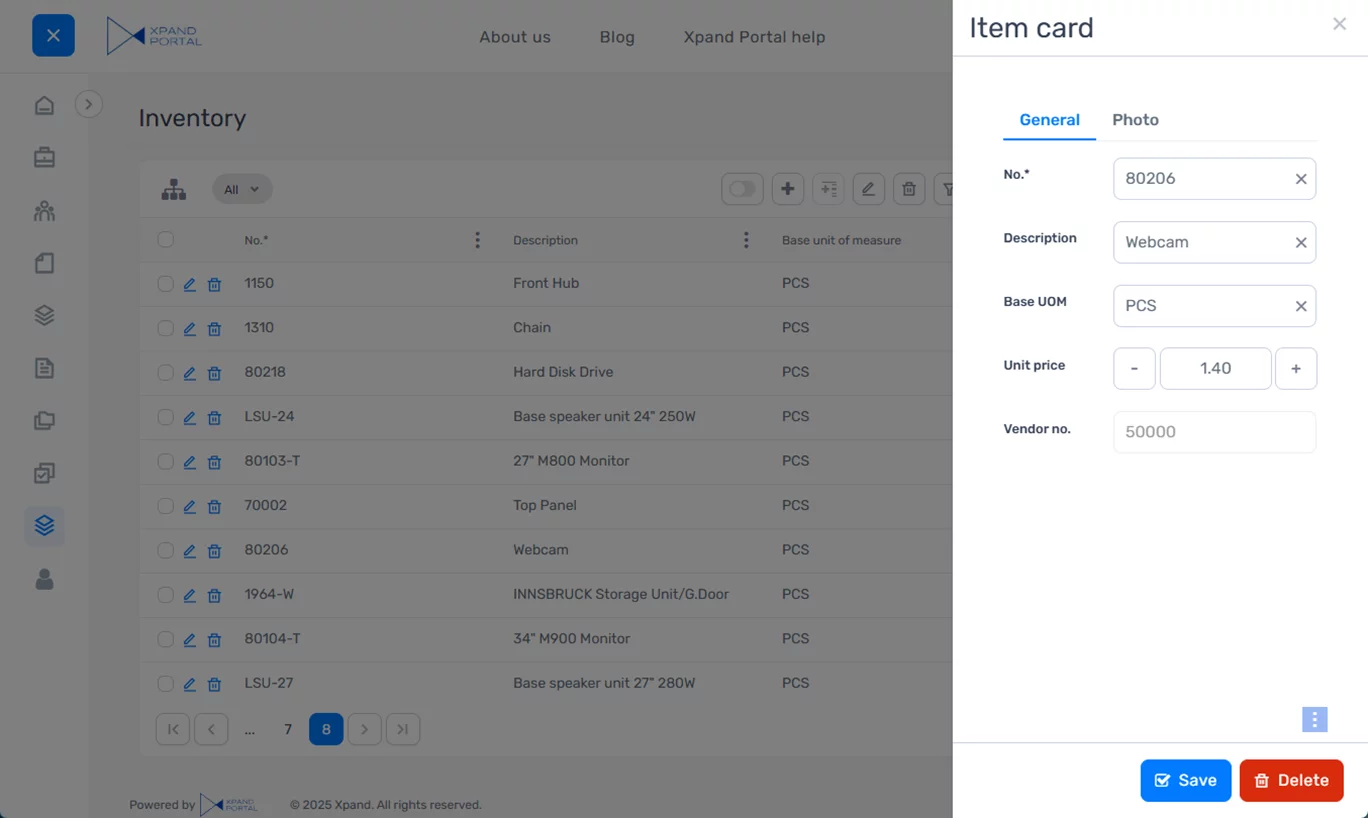
This style is especially useful when working with lists or forms with many fields, as it allows for more focused data entry without navigating away from the current page.
Also, several enhancements have been applied to existing components of Xpand Portal.
If you’re interested in updating your existing portal to the latest version, please let us know. We’d be happy to assist you with the update to the new 4.5.0.0 version.
About Xpand Portal
Xpand Portal is a web-based solution with over 9 years of market presence that provides a comprehensive and customizable product for businesses looking to streamline access to their various data sources, such as ERP and CRM systems, and improve companies’ overall productivity. It is designed to be simple and easy to use, with quick and intuitive configuration to meet your specific needs.
For detailed information about Xpand Portal, refer to our help center:
https://help.xpandsoftware.com/
To learn how Xpand Portal can help you meet your business needs, request a demo.